Knowledge Base | Grant Wolf IQ Access to Your Google Platforms Skip to main content

Knowledge Base

Thanks for partnering with Wolf IQ. Before we can run and measure your campaigns, our team needs access to your Google platforms. The guides below take you through each one step by step.

In every case, you are adding the same email address: [email protected]. Each guide takes under two minutes.

1. Google Search Console

Search Console shows us how your website performs in Google Search. Full access lets us monitor indexing, fix crawl issues and track your rankings.
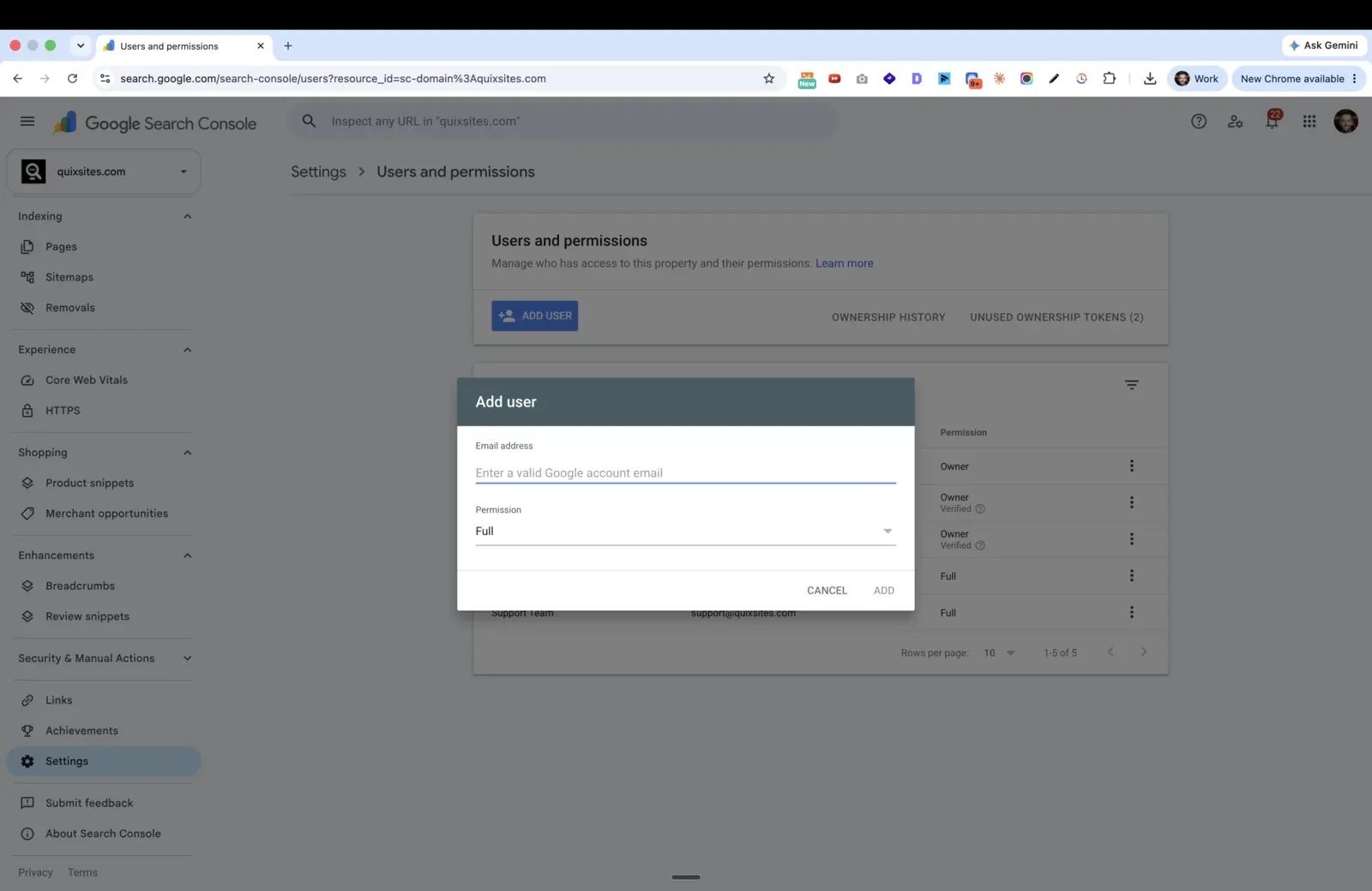
Google Search Console Add user dialog with email address and Full permission fields
  1. Go to Settings, then Users and permissions
  2. Click "Add user"
  3. Enter: [email protected]
  4. Set permission to Full
  5. Click Add

2. Google Analytics (GA4)

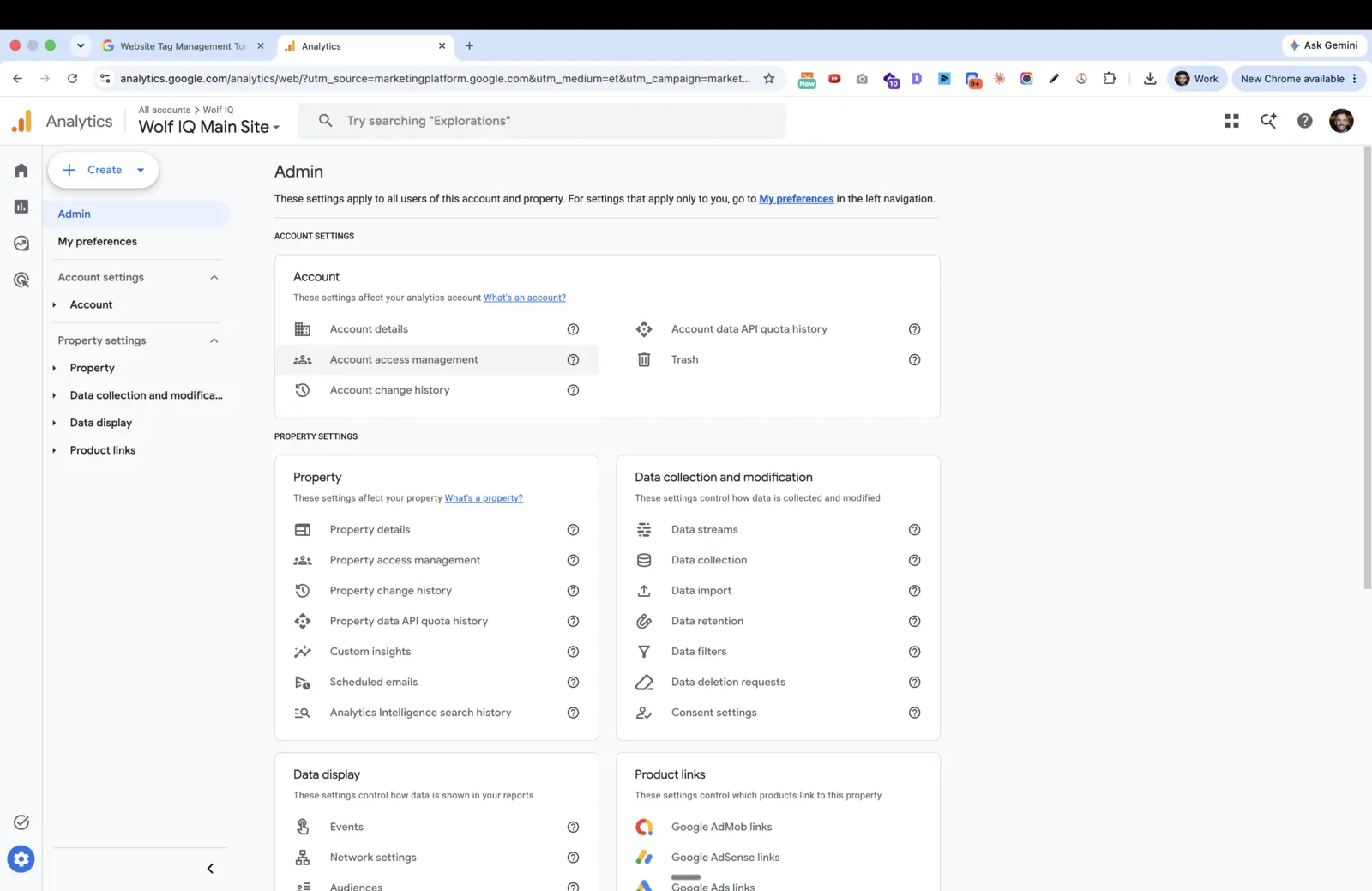
GA4 tracks who visits your website and what they do. Administrator access lets us configure conversion tracking and audit your data.

Google Analytics Admin screen showing Account access management
  1. Select your account/property, then Account Access Management
  2. Click the "+" button, then Add users
  3. Enter: [email protected]
  4. Set role to Administrator
  5. Click Add

4. Google Tag Manager

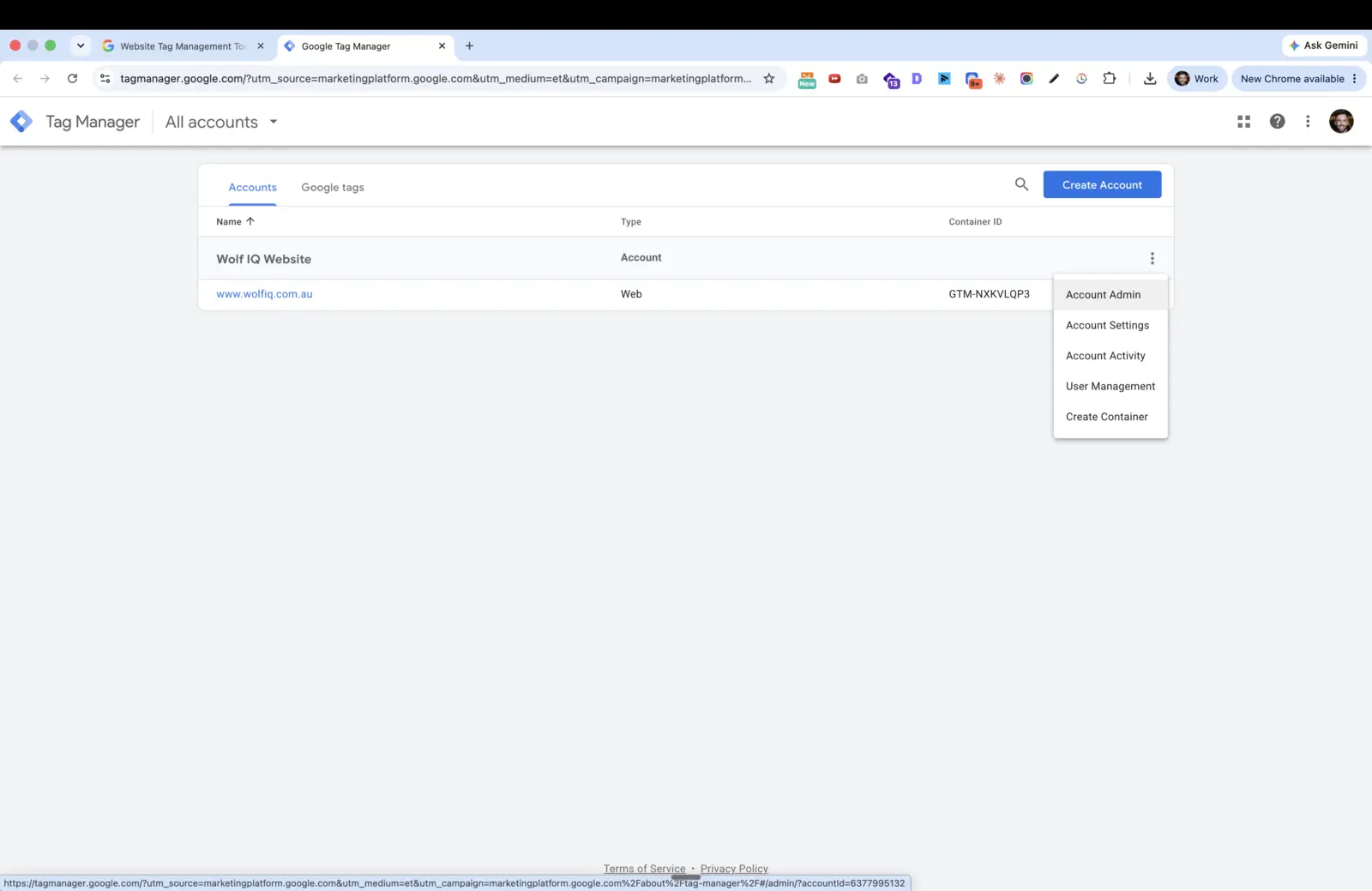
Tag Manager controls the tracking code on your website. Admin and Publish access lets us deploy and update tags without touching your site code.

Google Tag Manager account list with the User Management menu open
  1. Select your account, then User Management
  2. Click "+", then Add users
  3. Enter: [email protected]
  4. Set Account permission to Admin, Container permission to Publish
  5. Click Invite

Stuck on a step?

Our support team can walk you through it or handle it on a quick screen share.

Get in Touch