Key things to know about WordPress security
- WordPress core is rarely the problem: almost every compromise starts in a plugin, a theme or a stolen password, not WordPress itself.
- Updates are the whole game: our support system holds more than 3,900 automated plugin update records and nearly 1,900 WordPress core update confirmations. Boring, constant patching is what security looks like in practice.
- Layers beat silver bullets: no single plugin protects a site. Hosting, firewall, access control, updates and backups each stop what the previous layer misses.
- Most scary security emails are fake: a large share of the "critical vulnerability found on your website" emails our customers forward to us are scams or scare marketing. We show you how to tell the difference below.
- A hacked email account is not a hacked website: the two get confused constantly. They have different causes and different fixes.
- Recovery depends on backups you have tested: an untested backup is a hope, not a plan.
How secure is WordPress?
WordPress core is secure. It powers more than 40% of the web, the core team patches it constantly, and direct exploits of core code are rare.
The honest picture from our support desk, across almost 400 Australian business websites and more than 44,000 support conversations, is that risk concentrates in three places:
- Plugins and themes. Third-party code is where vulnerabilities live. The more you install, the larger your attack surface.
- Credentials. Weak, reused or shared passwords on admin accounts. Attackers do not break in; they log in.
- Neglect. Sites nobody maintains. Updates pile up, an abandoned plugin ships a vulnerability, and months later the site is serving spam.
That is good news. All three are controllable, and none of them requires you to write code.
What WordPress attacks actually look like
Security guides love exotic attack names. Here is what actually lands in a support inbox, in rough order of frequency:
| What happens | How it works | Primary defence |
|---|---|---|
| Brute force login attempts | Bots hammer your login page with thousands of password guesses, including passwords leaked from other breaches. | Strong unique passwords, 2FA, login attempt limits |
| Plugin vulnerability exploits | A disclosed flaw in a popular plugin gets scanned for across millions of sites within days. Unpatched sites get hit automatically. | Fast updates, fewer plugins, a web application firewall |
| Form and comment spam abuse | Bots flood contact forms and comments with junk and malicious links, polluting your inbox and your analytics. | CAPTCHA or honeypots, form-level validation |
| Malicious code injection | Once inside, attackers plant hidden redirects, spam links or backdoor admin accounts. Often invisible to the owner for weeks. | Malware scanning, file integrity monitoring, activity logs |
| Traffic floods (DDoS) | Mass automated traffic designed to knock your site offline. | Network-level protection such as Cloudflare |
And one that surprises people: a meaningful share of "my website has been hacked" reports we investigate turn out to be something else entirely. Usually a spoofed email, a scam vulnerability notice, or a third-party scanner flagging something harmless. The two sections after the security setup cover exactly how to triage those.
The 14-point WordPress security setup
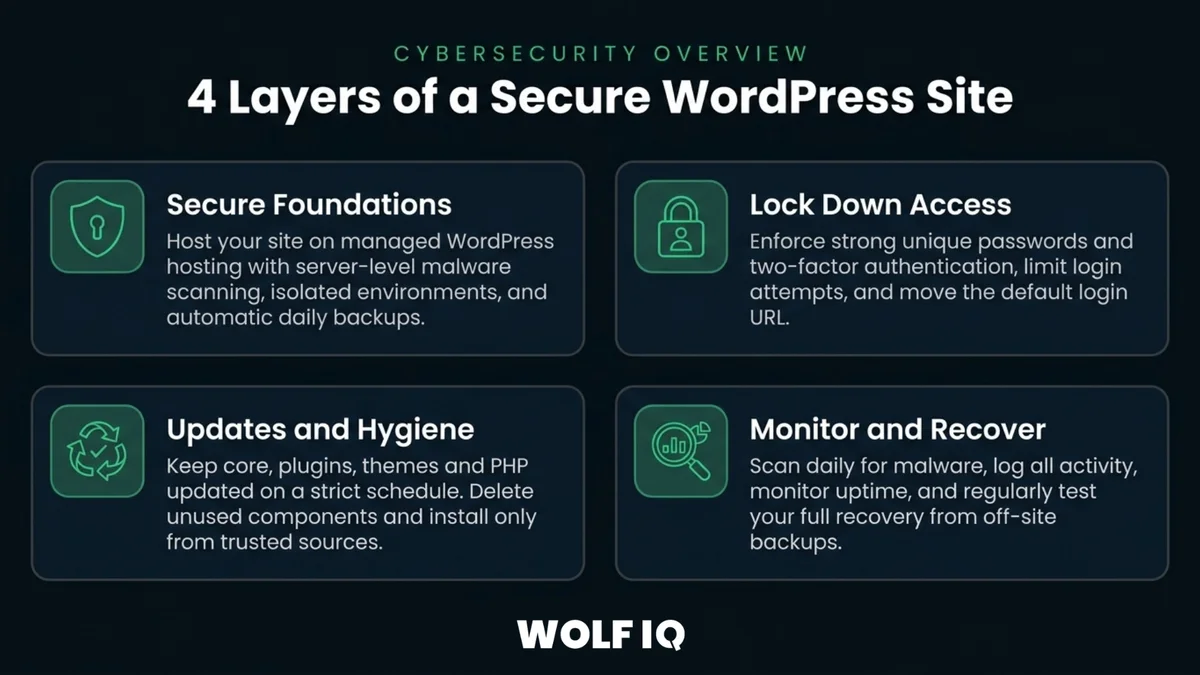
Security works as layers, not silver bullets. Each layer stops what the previous one misses. Work through them in order: the earlier layers deliver the most protection per hour of effort.
Layer 1: Secure foundations
1. Choose hosting that takes security off your plate. Your host is your first line of defence. Look for server-level malware scanning, isolated site environments, automatic daily backups and a firewall included. Cheap shared hosting puts your site on a server with hundreds of strangers, and one compromised neighbour can affect everyone. This is a large part of why we run customer sites on managed WordPress hosting on Google Cloud infrastructure.
2. Run SSL everywhere. SSL encrypts traffic between your visitors and your site, and browsers actively warn people away from sites without it. Certificates are free through Let's Encrypt and included with every reputable host. There is no reason to run without one in 2026. One caution: the padlock means traffic is encrypted, not that the site is safe. Scam sites use SSL too.
3. Put a web application firewall in front of the site. A WAF inspects every request before it reaches WordPress and blocks known attack patterns: SQL injection attempts, exploit probes, malicious bots. Cloudflare's free tier does this well, which is why we deploy it across customer sites. When a new plugin vulnerability is disclosed, a good WAF often blocks the exploit before you have even updated the plugin.
4. Run automated off-site backups on the 3-2-1 rule. Three copies of your data, on two types of storage, one of them off-site. Never keep your only backup on the same server as the site: if the server is compromised, both go together. Daily automated backups with 30 days of history is the standard we run. And test a restore at least quarterly, because an untested backup is a hope, not a plan.
Layer 2: Lock down access
5. Strong unique passwords plus two-factor authentication. Most compromises are logins, not break-ins. Use a password manager (1Password or Bitwarden) to generate a unique 16+ character password for every account, then add 2FA on every administrator login. This one change blocks the vast majority of automated account takeover attempts.
6. Limit login attempts and move the login page. Out of the box, WordPress allows unlimited login guesses at a login URL every bot on the internet knows. Lock out repeat failures after a handful of attempts, add a CAPTCHA, and rename the login URL. None of this stops a determined human, but it takes you off the automated target lists where nearly all attacks originate.
7. Give every user the minimum role they need. Your content writer does not need to install plugins. Your bookkeeper does not need to edit themes. Default new users to Editor or below, keep Administrator accounts to the absolute minimum, and remove access the day someone leaves the business. Stale accounts belonging to former staff and old agencies are one of the most common weaknesses we find when we take over a site.
8. Kill the "admin" username and audit your user list. If your administrator account is literally named "admin", attackers already have half your login. Create a fresh administrator with a unique name, reassign content, delete the original. While you are in there, review every account: if you do not recognise a user, find out why it exists.
Layer 3: Updates and hygiene
9. Update core, plugins, themes and PHP on a schedule. Outdated software is the single largest cause of WordPress compromises. Turn on auto-updates for minor core releases, review plugin updates at least weekly, and keep PHP on a currently supported version. This is the least glamorous practice in the guide and the most important. It is also the bulk of what a maintenance service actually does: our support system holds more than 3,900 automated plugin update records and nearly 1,900 core update confirmations across customer sites, because that volume of patching is what staying secure requires.
10. Delete what you are not using. Every inactive plugin and theme is still code sitting on your server that an attacker can exploit and that nobody is watching. Deactivated is not deleted. If you are not using it, remove it. Fewer plugins means fewer vulnerabilities, faster updates and a faster site.
11. Install only from trusted sources. Stick to the official WordPress repository and established commercial vendors with active support. Nulled "premium" themes and plugins from sketchy download sites are routinely bundled with malware. Installing one hands an attacker the keys and skips every other defence on this list.
12. Close the built-in back doors. Two settings ship enabled that most business sites should turn off. Dashboard file editing lets any administrator account edit PHP directly, which means one stolen admin login becomes full code access; one line in wp-config.php disables it (define('DISALLOW_FILE_EDIT', true);). XML-RPC is a legacy remote-access feature that lets bots test thousands of passwords in a single request; unless you use the WordPress mobile app or Jetpack, have your developer or host disable it.
Layer 4: Monitor and recover
13. Scan daily and log everything. A security plugin such as Wordfence or Sucuri gives you three things worth having: daily malware scans, file integrity monitoring that alerts you the moment a core file changes unexpectedly, and login security. Pair it with an activity log so you can see who changed what and when. When something looks wrong, that log is your forensic trail. Run one security plugin, configured properly. Two will fight each other.
14. Monitor uptime and test your recovery. You want to know your site is down before your customers tell you. Uptime monitoring is free or nearly free. And schedule an actual restore test quarterly: spin up the backup on a staging environment and confirm it works. The moment you need a backup is the wrong moment to discover it does not restore.
Want this entire list handled for you?
Every Wolf IQ Care Plan covers the security work in this guide: managed hosting, firewall, updates, daily backups, malware scanning and a team that answers when something looks wrong.
See Care Plan PricingIs that security email real? How to triage vulnerability notices
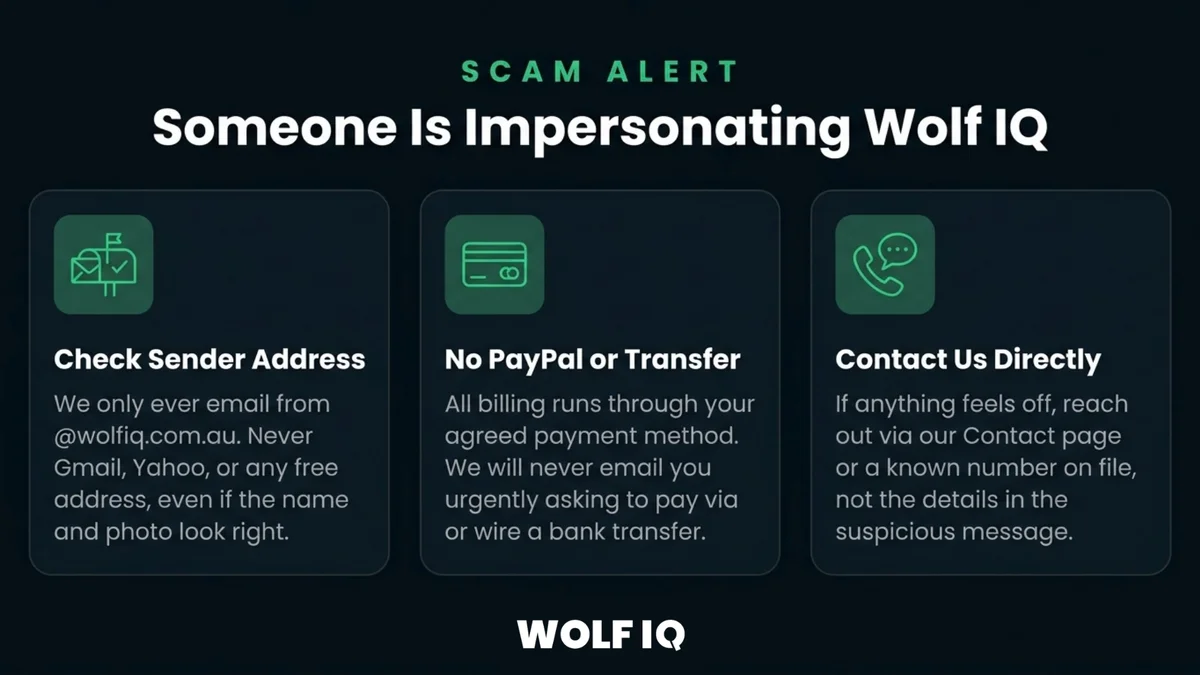
Here is a problem no security checklist covers: business owners regularly receive alarming emails claiming their website has a critical vulnerability or has already been hacked. Customers forward these to our support desk every month, and a large share of them are scams or scare marketing designed to sell you something or steal credentials.
A real one from a customer's inbox: an email titled "Critical vulnerability found: your website is at risk!" that had the owner genuinely worried. Our team's verdict after checking the site took one line: it is a scam, please disregard.
How to tell the difference:
| Genuine security notice | Scam or scare marketing |
|---|---|
| Comes from a party with real access: your host, your agency, your security plugin or a logged-in service. | Comes cold, from a company you have never dealt with, often with a generic sender address. |
| Names the specific plugin or component, the version affected and often the CVE reference. | Vague on detail: "critical vulnerabilities detected" with no specifics you can verify. |
| Tells you what to do: update this plugin, or confirms it has already been patched for you. | Pressures you to click a link, pay for an urgent fix, or hand over login details. |
| Calm in tone. Real disclosures are routine events handled on a schedule. | Manufactured urgency: act within 24 hours, your site will be delisted, your data is being stolen right now. |
The rule: never click links or act directly from an unexpected security email. Forward it to whoever manages your website and ask them to verify against the site itself. A professional check takes minutes and settles it with evidence rather than fear.
Also worth knowing: corporate IT teams and security scanners sometimes flag WordPress sites for vulnerabilities that a firewall already blocks or a patched version already fixed. When a customer forwards us a scanner report, our team verifies the WordPress version is patched, confirms the firewall rules cover the disclosed exploit, and replies with exactly what was checked. Ask for the same from whoever supports your site.
Hacked email vs hacked website: they are not the same thing
This confusion comes up constantly. A customer or someone they know receives a suspicious email that appears to come from the business, and the immediate fear is "our website has been hacked". Almost always, the website has nothing to do with it.
Three different problems get mixed together:
- Email spoofing. Scammers forge your address in the "from" field without any access to your systems. Fixed at the domain level with SPF, DKIM and DMARC records, which tell receiving mail servers which senders are legitimate for your domain.
- A compromised email account. Someone actually has your mailbox password, usually from a phishing link or a reused password. Fixed by changing the password, enabling 2FA on the mailbox, and reviewing forwarding rules attackers love to plant.
- A compromised website. A different system entirely, with the signs and recovery steps covered in the next section.
Why it matters: the fixes live in different places. Panicking about your website while an attacker sits in your inbox, or wiping your mailbox while spam links sit on your site, solves the wrong problem. If you are unsure which you are dealing with, describe exactly what happened to your support team before anyone starts changing things.
What to do if your WordPress site is hacked
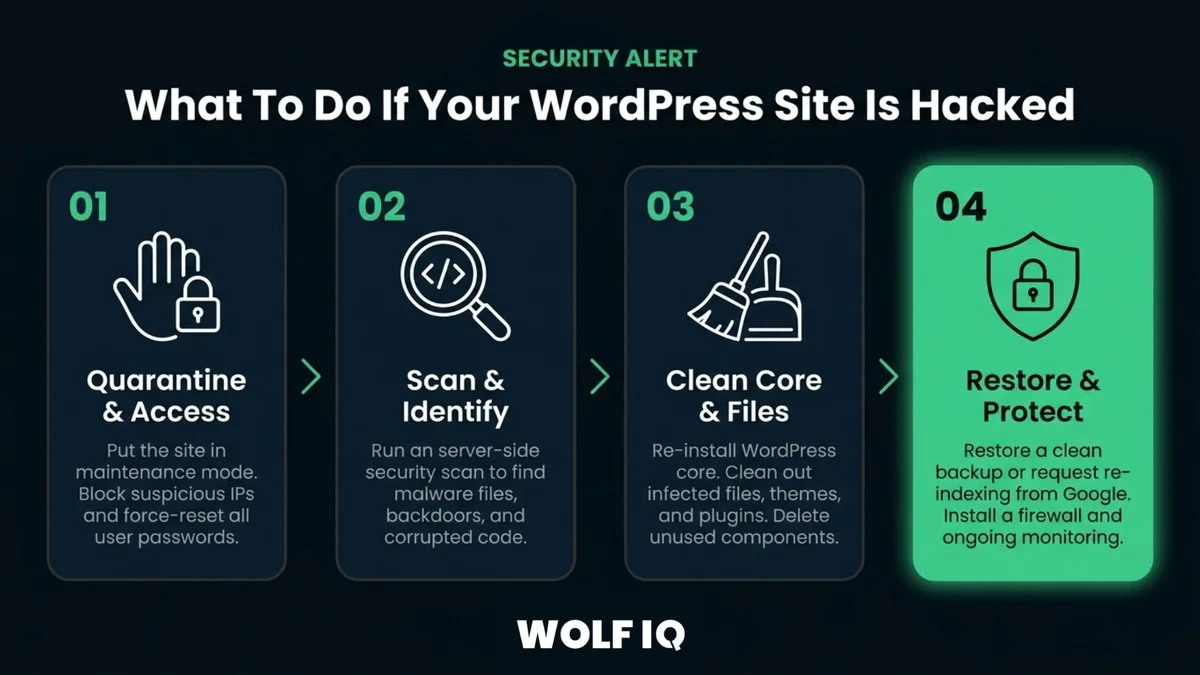
First, confirm it is actually the website. Real signs: browser or Google warnings on your own URL, admin accounts you do not recognise, strange links or pages appearing on the site, a sudden traffic drop, or your host notifying you of malware. If any of those are present, work the list in order:
- Take the site into maintenance mode so the compromise cannot spread to your visitors while you work.
- Change every connected password: WordPress admins, hosting, FTP, database, and any email accounts on the domain. Assume the attacker has all of them.
- Scan for malware and backdoors. A full scan maps the scope of the infection. Attackers routinely plant a second way in, so cleaning only the obvious problem invites a repeat.
- Restore from a clean backup taken before the compromise. This is the fastest reliable path back, and why backup history matters.
- Update everything before going live: core, every plugin, every theme, PHP. Outdated software is probably how they got in; do not bring the same hole back online.
- Audit users and activity logs. Delete unrecognised accounts and trace what the attacker touched while inside.
- Request a Google review if you were flagged. Once clean, submit a reconsideration request in Search Console, or the "deceptive site" warning stays up after the problem is fixed.
If that list feels beyond what you can handle mid-crisis, that is normal. Get professional help early: recovery done half-way is how sites get re-hacked within the month.
The WordPress security checklist
The whole guide in one list. Print it, work through it, or hand it to whoever manages your site and ask them to confirm each line.
Foundations
- ☐ Hosting includes malware scanning, isolation and a firewall
- ☐ SSL active on every page
- ☐ Web application firewall (e.g. Cloudflare) in front of the site
- ☐ Daily automated off-site backups, 30 days of history, restore tested this quarter
Access
- ☐ Unique 16+ character passwords from a password manager
- ☐ 2FA on every administrator account
- ☐ Login attempts limited, CAPTCHA on, login URL changed
- ☐ No "admin" username, no unrecognised accounts, minimum roles for everyone, former staff and agencies removed
Hygiene
- ☐ Core, plugins, themes and PHP current; updates reviewed weekly
- ☐ Unused plugins and themes deleted, not just deactivated
- ☐ Everything installed from trusted sources only
- ☐ Dashboard file editing disabled, XML-RPC off unless needed
Monitoring
- ☐ Daily malware scans and file integrity monitoring running
- ☐ Activity log recording every login and change
- ☐ Uptime monitoring alerting someone who will act
- ☐ Everyone knows not to act on unexpected security emails without verification
What this looks like with a Care Plan
Everything in this guide is doable yourself. The honest question is whether it will keep getting done next month, and the month after, while you run a business.
This is the work our Website Care Plans exist to absorb. In practice that means managed hosting with the firewall and SSL handled, updates applied and verified continuously, daily off-site backups, malware and uptime monitoring, and a support desk that checks the scary email so you do not have to. When a customer forwards a vulnerability notice, they get back a plain-language answer with evidence: what was checked, what was found, and whether anything needs doing.
Security is not a project you finish. It is a routine someone has to own. Whether that is you with this checklist or us with a Care Plan, make sure it is genuinely owned.
Frequently Asked Questions
Is WordPress secure enough for a business website?
Yes. WordPress core is actively maintained and rarely the point of compromise. The real risks are outdated plugins and themes, weak passwords and neglect, and all three are controllable. A WordPress site with managed hosting, a firewall, 2FA, current software and monitored backups is a hard target. The platform is not the risk; unmanaged sites are.
How do I know if my WordPress site has been hacked?
The reliable signs are browser or Google warnings on your own URL, administrator accounts you do not recognise, strange links or pages appearing on the site, a sudden drop in organic traffic, or a malware notice from your hosting provider. A suspicious email that appears to come from your business is usually email spoofing, not a website compromise. If you see genuine signs, run a malware scan straight away and follow a structured recovery process.
What is the best WordPress security plugin?
Wordfence is the strongest all-rounder because it combines a firewall, malware scanning, file integrity monitoring and login security in one plugin, and its free tier covers most small business sites. Solid Security and Sucuri are quality alternatives with different strengths. Whichever you choose, run exactly one security plugin, configured properly. Running two firewall plugins together causes conflicts and breaks sites.
Do I still need a security plugin if I use Cloudflare?
The two protect different layers, so ideally yes. Cloudflare blocks malicious traffic at the network edge before it reaches your server, while a security plugin watches what happens inside WordPress: file changes, malware, login attempts and user activity. A network firewall cannot see a backdoor file planted on your server, and a plugin cannot absorb a traffic flood. Together they cover each other's blind spots.
How often should I update my WordPress website?
Review and apply plugin updates at least weekly, enable auto-updates for minor WordPress core releases, and test major releases on a staging site before pushing them live. Keep PHP on a currently supported version. The sites we see compromised are almost always the ones that have gone a month or more without updates, because disclosed vulnerabilities get scanned for across the whole internet within days.
I received an email saying my website has critical vulnerabilities. Is it real?
Treat it with suspicion. Many of these emails are scams or scare marketing. Genuine notices come from parties with real access to your site, name the specific plugin and version affected, and tell you exactly what to do. Scams arrive cold, stay vague, manufacture urgency and push you to click a link or pay for a fix. Never act directly from an unexpected security email; forward it to whoever manages your website and ask them to verify against the site itself.
Does an SSL certificate make my website secure?
SSL is necessary but not sufficient. It encrypts the connection between your visitors and your site, which protects data in transit and is expected by browsers and Google. It does nothing about vulnerable plugins, weak passwords or malware already on the server. Think of SSL as one layer of a security setup that also needs a firewall, access control, updates and monitoring.
What does WordPress security cost?
The core practices cost little or nothing: SSL certificates are free, Cloudflare has a capable free tier, strong security plugins have free versions, and good habits are free. The real cost is time and consistency, because updates, scans and backup checks need doing every week. A managed care plan bundles hosting, firewall, updates, daily backups, monitoring and support into a fixed monthly fee, which is usually far less than one professional hack cleanup.